A design subscription should earn its place in your budget. If you only need a few social posts, a better way to edit product photos, or an original logo, paying for an entire creative workspace may be unnecessary. But replacing Canva with the cheapest tool you can find can also create more work than it saves.
The useful question is not simply “Which tool costs less?” It is “Which tool can finish the designs I make every week?” Some Canva alternatives offer a familiar template-based workflow. Others give you more control over photographs, layers, or vector artwork, but expect you to build the layout yourself.
This guide compares seven options for different kinds of creators and businesses. You will find the closest alternatives for everyday marketing, specialist tools that can remove a subscription from your workflow, and the practical tradeoffs to consider before moving your existing designs.
Which Canva Alternative Is Right for You?
For a small business producing social posts, flyers, and occasional videos, Adobe Express is our recommended first trial. VistaCreate is another strong starting point, especially when regular downloads are important and you want to begin on a free plan. Both make more sense for template-based marketing than an advanced image editor.
If your main frustration is limited control over images, start with Photopea for browser editing or GIMP for desktop work. Inkscape is the specialist choice for scalable logos and illustrations. Figma belongs on the shortlist when you need reusable layouts and collaborative interface design. Snappa sits between these groups: a focused option for bloggers and marketers who mainly create online graphics.
Those recommendations describe task fit, not a universal ranking of quality. A free specialist editor can replace one part of Canva without replacing its full workspace. Likewise, a paid competitor may cost more than Canva in your region.
Affordable Canva Alternatives at a Glance
| Tool | Best use | Free option | Paid price or cost consideration | Main tradeoff |
|---|---|---|---|---|
| Adobe Express | Everyday marketing content | Free plan | Premium ₹398.84/month in India, including GST | Premium resources and tools require upgrading |
| VistaCreate | Template-based social posts | Starter plan | Pro available; check current checkout price | Advanced tools and resources require Pro |
| Snappa | Blog covers and thumbnails | 3 downloads per month | Pro $15/month or $120/year, USD | Restrictive free download allowance |
| Photopea | Layered images and PSD files | Free core editor | Check optional paid offers separately | More editing knowledge required |
| GIMP | Desktop photo manipulation | Free, open source | No software subscription required | Installation and learning time |
| Inkscape | Original vector artwork | Free, open source | No software subscription required | Less convenient for rapid template editing |
| Figma | Reusable layouts and interfaces | Starter plan | Paid cost depends on seat and billing term | Design learning curve and team limits |
Prices and plan details were checked on October 3, 2026. Adobe’s quoted price is for India, while Snappa’s is in USD. These are vendor-listed figures rather than currency-converted comparisons. Taxes, renewal terms, offers, and capabilities can change.
Why Look Beyond Canva—and When Should You Stay?
Canva brings templates, visual assets, and editing tools into one workspace. That breadth is its appeal: a business can produce several kinds of content without assembling a separate tool for every task. For many beginners, a familiar layout is also more valuable than a long list of advanced features.
The reasons to switch are usually specific. You may need greater control over a photo, want to create original vector artwork, or find that a paid feature matters only a few times each month. A growing team may instead be reassessing seat costs, sharing permissions, or the way feedback moves through a project.
Before leaving, check whether Canva Free already meets your needs. A new subscription is not a saving if the old workflow cost nothing. And if your team has years of reusable templates, a modest price difference may not justify rebuilding them.
How We Chose the Tools in This Guide
We reviewed official pricing pages, feature descriptions, and documentation, considering free-plan usefulness, editing capabilities, file compatibility, device access, collaboration, and billing structure. The list includes close template competitors alongside specialist editors because readers do not all need the same kind of replacement.
This is a research-based editorial comparison. We have not claimed hands-on benchmark results, assigned invented ratings, or used customer-review scores as a ranking formula. The product images are sourced interface examples; older examples are identified in their captions and may differ from today’s layout.
1. Adobe Express: The Most Practical Starting Point for Everyday Content
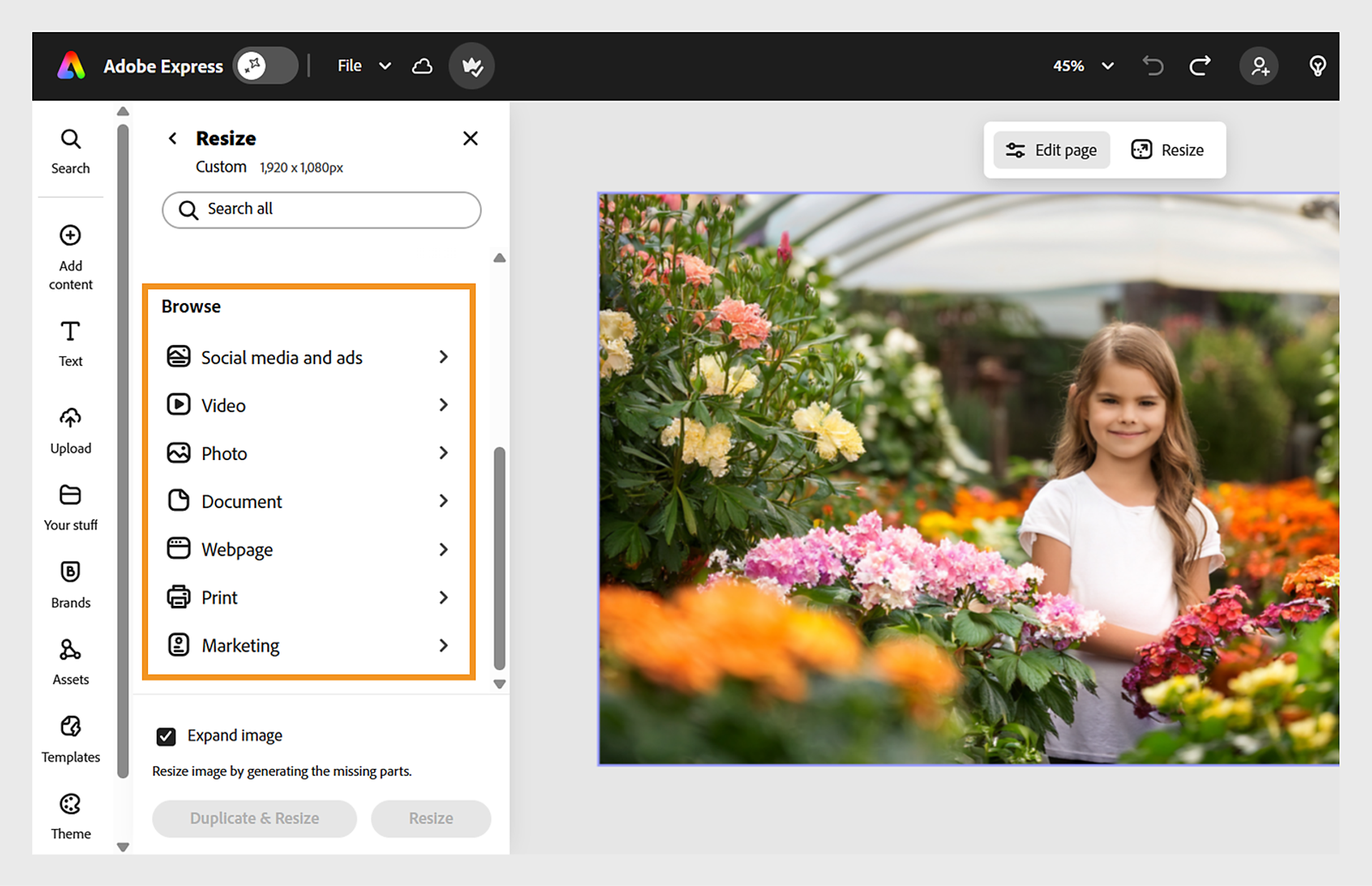
Adobe Express is worth trying when you want to change tools without completely changing the kind of work you do. Its combination of templates and photo, video, and document editing suits a small business that needs a promotional flyer one day and a social video the next.
Imagine a shop preparing a weekend offer. The important task is turning its own photographs and message into several usable pieces of content. A broad template platform fits that job more naturally than a specialist editor, where the shop would have to construct each layout. Express is a close Canva alternative for this scenario, although you will still need to find templates and shortcuts that suit your brand.
The India pricing page lists Premium at ₹398.84 per month including GST, billed monthly without an annual commitment. A free plan lets you assess the workspace before paying. Premium adds resources and capabilities such as brand kits and one-click resizing; check which of your recurring tasks actually needs those extras.
Its appeal is the range of content you can produce across browser and supported mobile devices. The tradeoff is that premium assets and tools introduce familiar upgrade decisions. Choose Express for everyday marketing versatility, but look to a dedicated vector editor if precision artwork is the main reason you are leaving Canva.
2. VistaCreate: A Strong Free Option for Regular Social Content
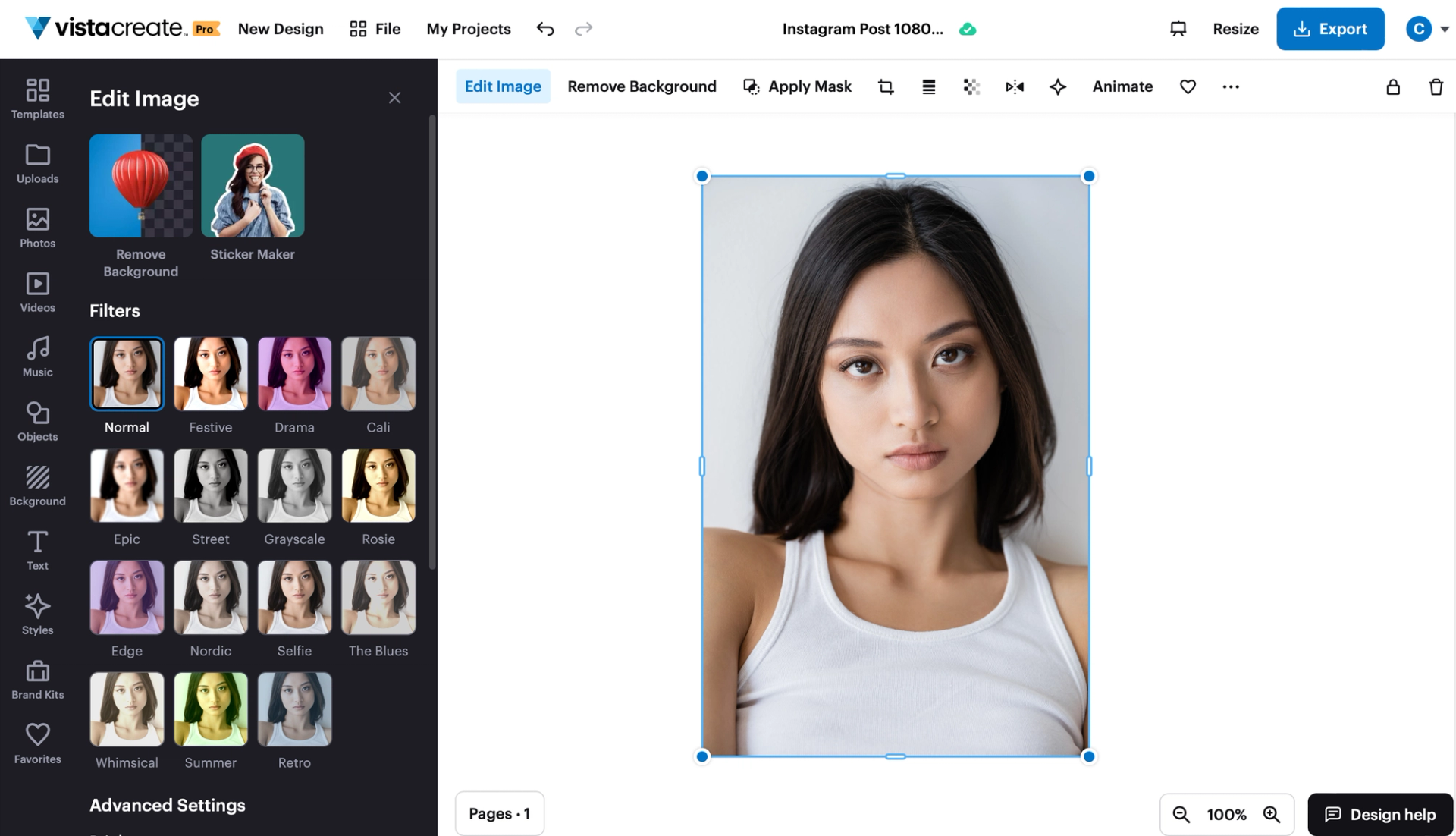
VistaCreate is a natural shortlist option for someone who already likes working from a template. Rather than learning a fundamentally different design approach, you can start with a layout, replace the photographs and copy, and adapt the colors to a recurring campaign.
Its Starter plan includes templates, creative assets, basic photo and video editing, web/mobile syncing, and unlimited downloads of finished designs. For a shop publishing offers regularly, the ability to keep exporting makes this free plan particularly relevant.
That does not make every feature free. Pro adds premium resources and advanced tools, so verify the current checkout price and renewal terms if your workflow depends on them. Also distinguish finished-design exports from standalone creative-asset downloads; they have different rules.
VistaCreate’s strength is accessible template-based production. Its limitation is that it may not resolve a need for extensive technical editing, and existing Canva layouts may need rebuilding. We would shortlist it for social media creators and small shops, then test one complete campaign before committing to a paid plan.
3. Snappa: A Focused Choice for Blog Graphics and Thumbnails
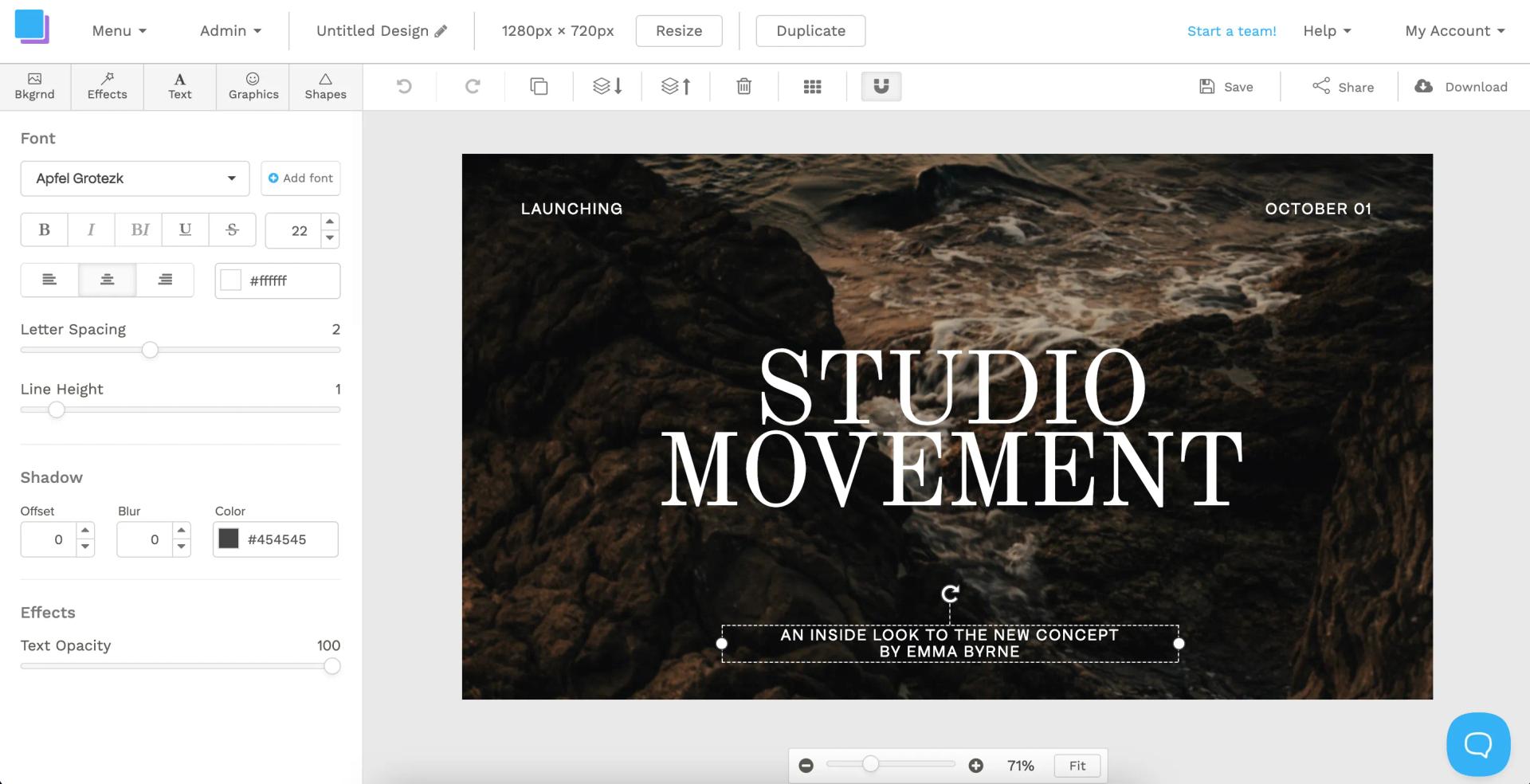
Some creators do not need another broad design suite. They need a readable article cover, a thumbnail, or an advertising image and want to get back to publishing. Snappa’s focus on online graphics makes it worth evaluating for that narrower job.
For a blogger, the useful comparison is how easily a chosen image, headline, and brand style become an export at the right size. A focused workspace can suit this task, but it should not be assumed to replace all the documents, presentations, and other content you may currently make in Canva.
The key budget consideration is the download allowance. Starter permits three downloads each month. Pro costs $15 monthly or $10 per month billed yearly, equivalent to $120 paid for a year, and adds unlimited downloads, custom font uploads, background removal, and social integrations.
That creates a clear dividing line. Occasional publishers can try the free option, while a busy content schedule will probably exceed it. Choose Snappa if its graphics workflow earns the paid cost; do not choose it on the assumption that a USD subscription will always be cheaper than Canva locally.
4. Photopea: More Control Over Images Without Installing an Editor
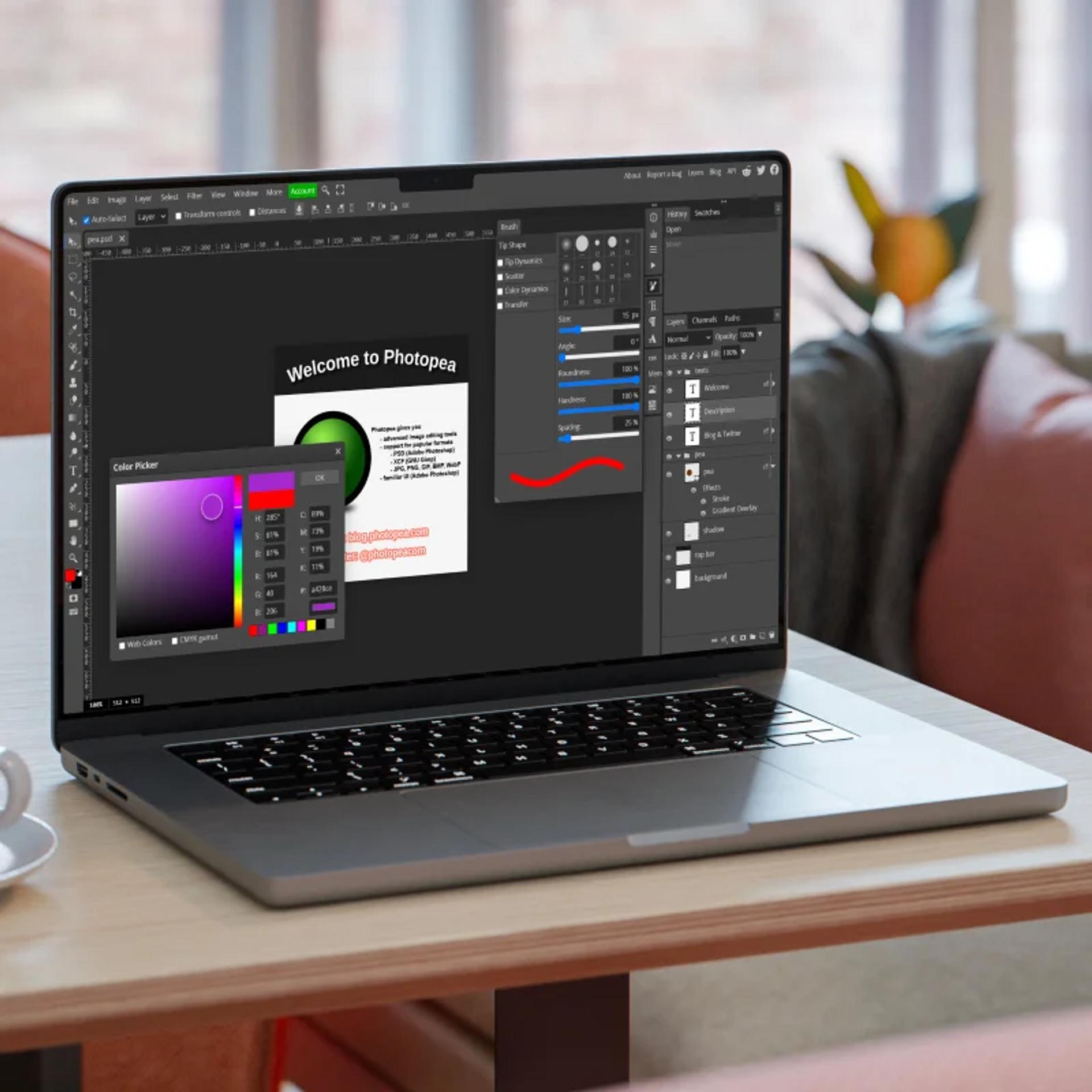
Photopea answers a different need from template-based Canva competitors. When you want to adjust individual layers, refine a selection, or work with an existing PSD file, a detailed image editor is more relevant than another library of layouts.
A practical example is a seller improving product photographs before placing them into promotional designs. Photopea can handle the image preparation while a template tool handles the final layout. You do not have to move the entire content workflow to gain value from this combination.
Its official overview confirms support for opening and saving PSD files, alongside layers, masks, and other editing tools. The core editor is free; optional paid offers should be checked separately. The learning cost is more substantial than with a simple template editor, particularly if you are unfamiliar with selections and layer-based work.
Photopea is a useful choice for browser-based image control, but a less comfortable starting point for someone who only wants ready-made social graphics. Its learning guide recommends a large screen, keyboard, and precise pointing device. It also states that ordinary editing runs locally on your device; review any additional connected services separately.
5. GIMP: A Free Desktop Editor for Detailed Photo Work
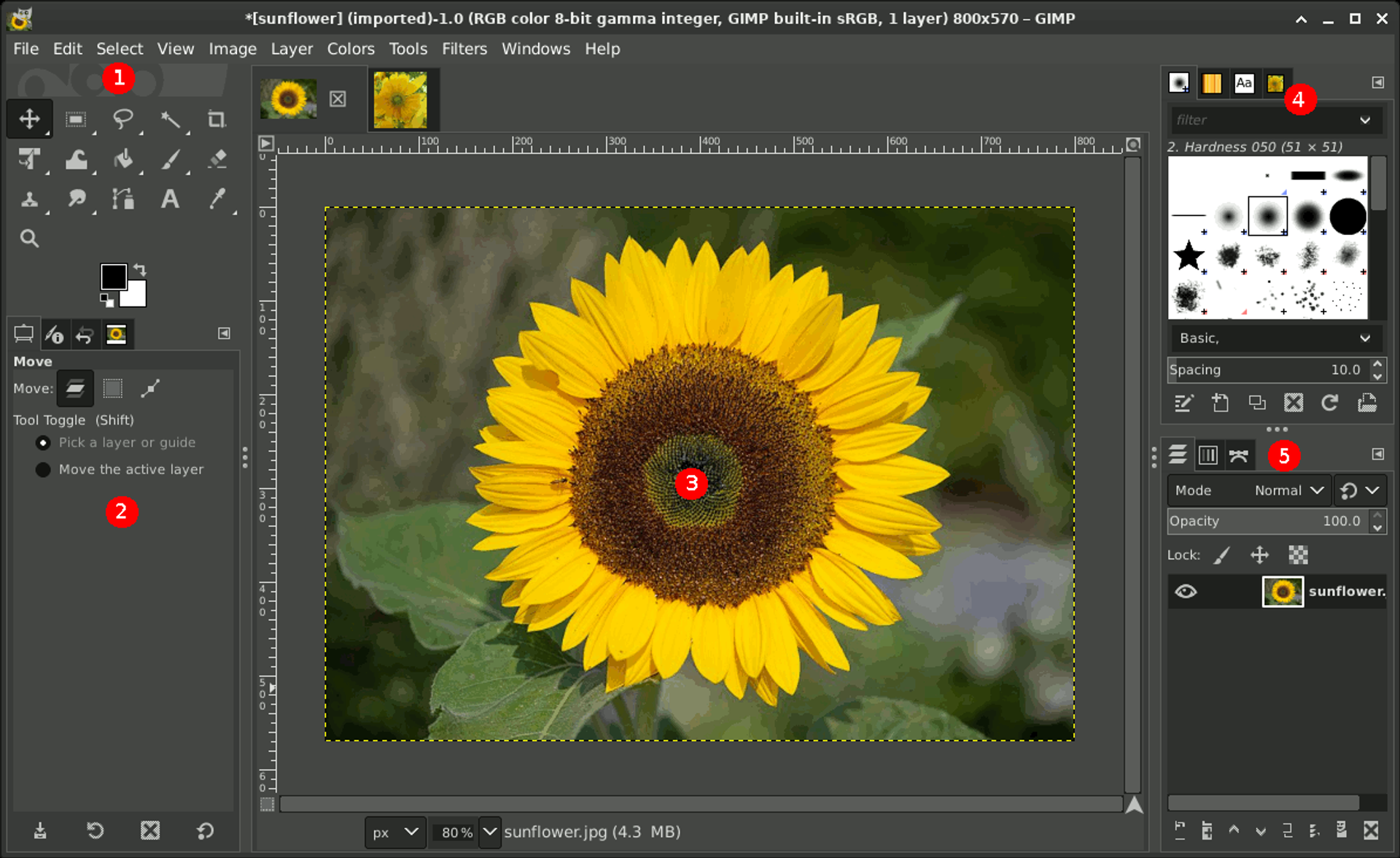
GIMP makes sense when editing photographs is a regular part of your work rather than an occasional step inside a marketing template. Product retouching, composites, and original image work benefit from an editor built around detailed manipulation.
The important difference from Canva is the workflow. You install GIMP, work with your files, and develop a repeatable editing process. You are taking on more responsibility for layout and file organization in exchange for focused control. That can be worthwhile for a freelancer or business that repeatedly needs precise adjustments.
GIMP is free and open source, supports Windows, macOS, and GNU/Linux, and can be extended through customization and plugins. There is no required software subscription, although training and maintaining a dependable workflow still take time. Its documentation is a useful place to start.
The strength is editing depth without a recurring license fee. The drawback is the learning curve, plus the need for separate file sharing and approvals if several people are involved. Choose GIMP to build an image-editing workflow; choose a template platform when producing a quick campaign is the more important job.
6. Inkscape: The Specialist Choice for Logos and Vector Artwork
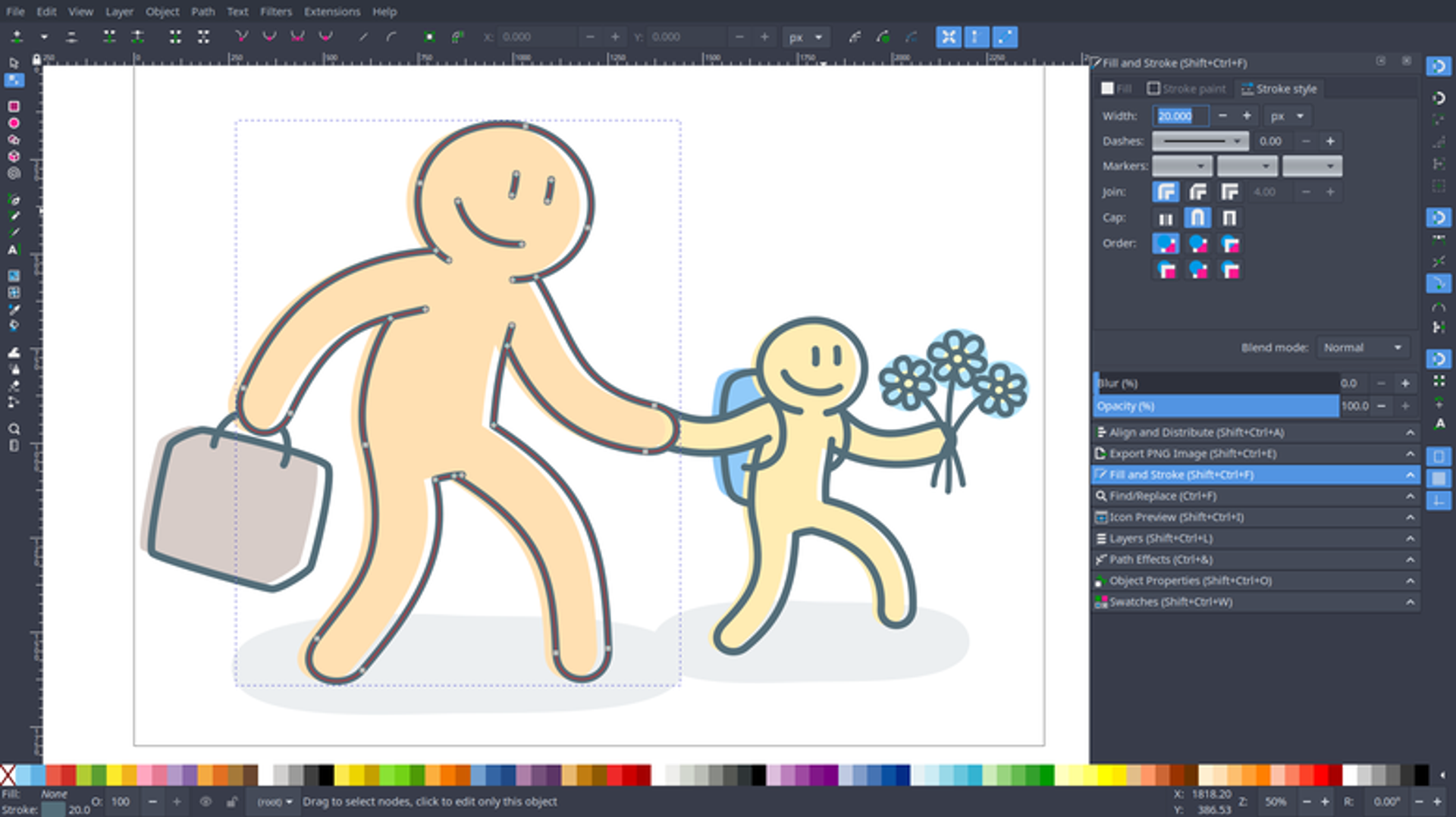
Image source: Inkscape · CC BY-SA 3.0
Inkscape becomes relevant when the design itself needs to be original and editable. A logo, custom icon, or illustration often calls for control over shapes and paths rather than rearranging existing elements in a template.
Vector artwork can scale without the same pixelation concerns as a raster image. That makes editable vector sources useful when one graphic must work across a website, packaging, and printed materials. Inkscape is a free, open-source editor for this kind of work, with no required software subscription.
Its advantage over a general template workflow is control over the structure of the artwork. The price of that control is learning how paths and nodes behave, and allowing more time to create an original design. It is therefore a specialist alternative to Canva, not the obvious choice for someone making several quick social posts.
Keep the editable SVG source and export copies for other uses. Check fonts and final output with the destination application or printer. Choose Inkscape when reusable vector artwork is the goal; combine it with a template platform if you also need frequent marketing content.
7. Figma: Better Suited to Reusable Layouts and Design Collaboration
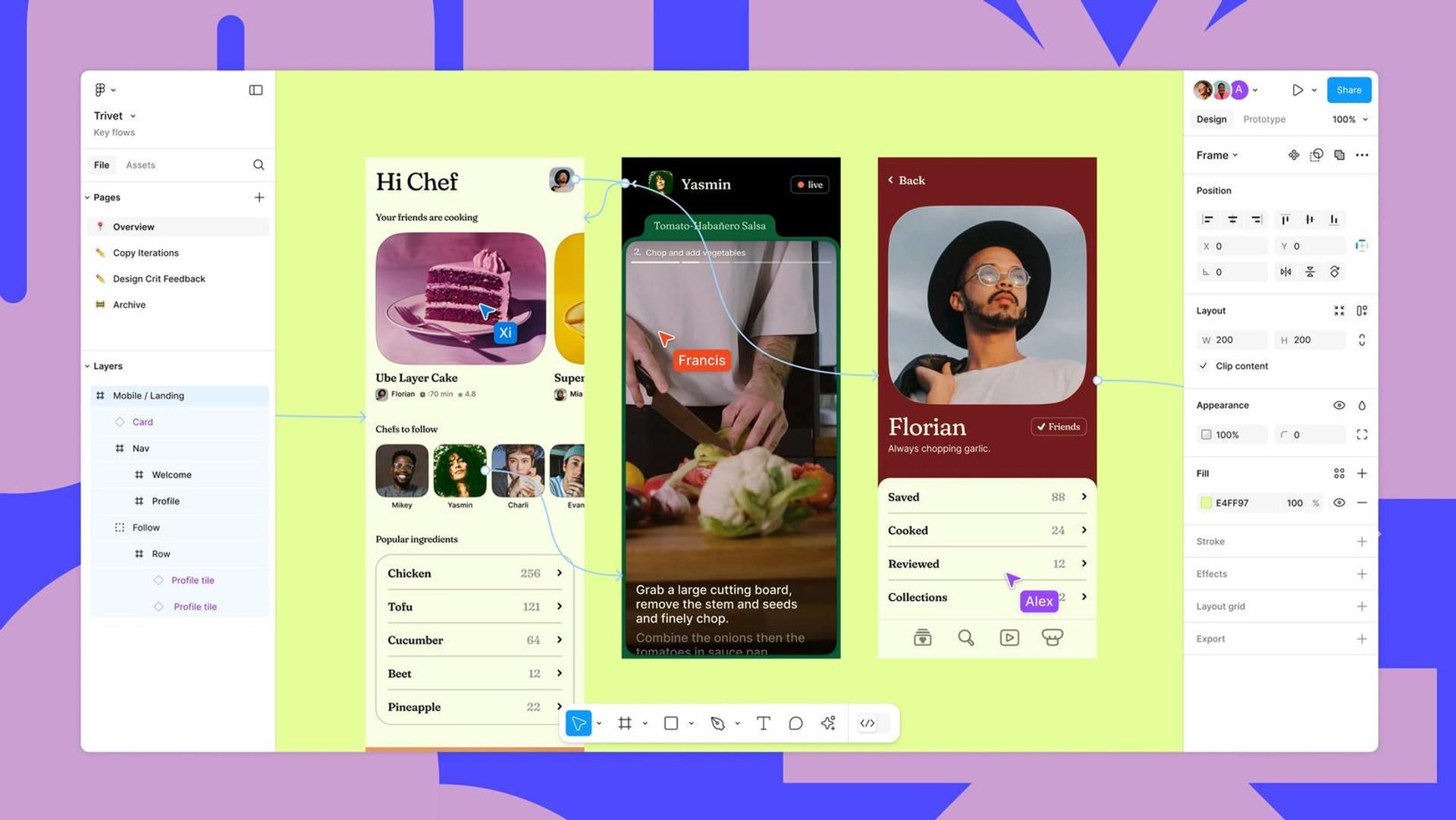
Figma belongs in this guide for readers who are moving beyond one-off graphics toward a repeatable visual system. Website layouts, interface mockups, and structured design work call for consistent elements and collaborative feedback.
For example, a product team may need to maintain the same typography, spacing, and component behavior across several screens. That is a different job from choosing a social template and replacing its text. Figma is worth considering for the former, while Canva-style marketing platforms remain more natural for the latter.
The Starter plan is free and includes unlimited drafts, with limited access across products. Paid costs depend on the plan, seat type, and billing term. Compare the editing seat you actually need rather than treating the lowest-priced collaboration seat as a full design subscription.
Figma’s appeal is reusable structure and team-oriented design. Its tradeoff is the time needed to learn and organize that structure, alongside team and product limits that can change the cost. Shortlist it for design collaboration and interfaces; do not select it solely because it offers a free entry point.
What “Cheap” Really Means for Your Workflow
The subscription price is only the first part of the calculation. A tool can be free yet expensive in learning time; another can cost less per month but require extra seats or paid assets. Evaluate the plan that completes your actual work, including the required export format, dimensions, transparent background, storage, and any AI credit allowance.
Snappa illustrates the billing tradeoff. Twelve months at $15 would total $180 if the monthly rate remains unchanged, while its annual Pro option commits $120 upfront. The annual option saves money only if you keep using it. Similar care is needed when comparing a price in INR including GST with one in USD.
Free-plan limits should be assessed at the point of export. A finished design is not useful if a watermark, premium element, or download cap prevents you from publishing it. And a download does not automatically give you permission to redistribute the stock images, fonts, or audio inside the project. Check the asset licenses for business use.
The same principle applies to convenience. If you primarily work on a phone, test the mobile editing process rather than assume browser access means comfortable mobile use. If you repeatedly need help, assess the tutorials and support channel available on the intended plan. A smaller monthly bill is not good value if routine work takes significantly longer.
Teams Need More Than a Good Editor
For an individual creator, the final export may be enough. For a company, the workflow also includes sharing files, leaving feedback, controlling access, and making sure the correct version gets published. Those requirements can matter more than an impressive list of editing features.
Check the integrations your team actually uses. Snappa’s paid plans list social integrations, Adobe Express includes scheduling options, VistaCreate documents social publishing features, and Figma’s paid plans extend team capabilities. None of that replaces checking your own approval process. Ask a colleague to edit a sample file, comment on it, and export the approved version.
Privacy deserves the same practical approach. For cloud tools, review upload storage, sharing-link permissions, deletion options, and the access controls your company needs. Desktop work and Photopea’s local editing can suit certain file workflows, but secure devices and backups still matter. Plugins, connected storage, and optional online services may introduce separate data-handling terms.
How to Move Your Designs Without Disrupting Your Work
Treat migration as a small pilot project. Choose one frequently used Canva layout, save a reference export, and recreate it in the new tool. Compare the result at the actual publishing size, paying attention to fonts, text wrapping, image quality, and any animation or print requirements.
Keep your original photographs, logos, and licensed font files separately. An exported image or PDF may preserve how a Canva design looks without preserving editable text, layers, or effects. Photopea’s PSD support helps with compatible layered files; it does not turn every Canva export into a fully editable project.
Before moving a whole library, test how a colleague receives and edits the new files. Keep the original Canva projects available while you establish the replacement workflow. Rebuilding a handful of valuable templates gradually is more manageable than discovering after a full switch that important layouts no longer behave as expected.
Our Verdict: Choose for the Job You Do Most Often
For most small businesses seeking a familiar marketing workflow, Adobe Express and VistaCreate are the strongest starting points in this guide. Try their free plans with a real campaign, including the final export, and pay only when a recurring task justifies the upgrade. Snappa deserves a look when blog graphics and thumbnails dominate your workload.
For specialist work, make a more targeted choice: Photopea for layered browser editing, GIMP for desktop photo manipulation, and Inkscape for original vector artwork. Figma is the shortlist option when reusable layouts and design collaboration are the central requirements.
The best Canva alternatives are the ones that fit your working habits, not simply the ones with the most features. If the new tool solves a clear problem at an acceptable total cost, switching makes sense. If your current free workflow already delivers, there is no need to replace it just to try something different.
Sources and Further Reading
Pricing and capability claims in this guide link to official vendor pages and documentation. Recheck the current offer before purchasing, especially when seat types, annual billing, taxes, or regional promotions affect the decision. Image captions identify the source and context of each product visual.
For related reading, explore PickMySoft’s Canva pricing guide and the Design & Creative collection. Check figures in older articles against the vendor’s current pricing.